


First identify the problem. If the unwanted sound runs under the whole recording, you can treat a wide stretch. If it happens once over a word, you need a way to work on that moment without changing the rest.
Audacity handles the common editing job
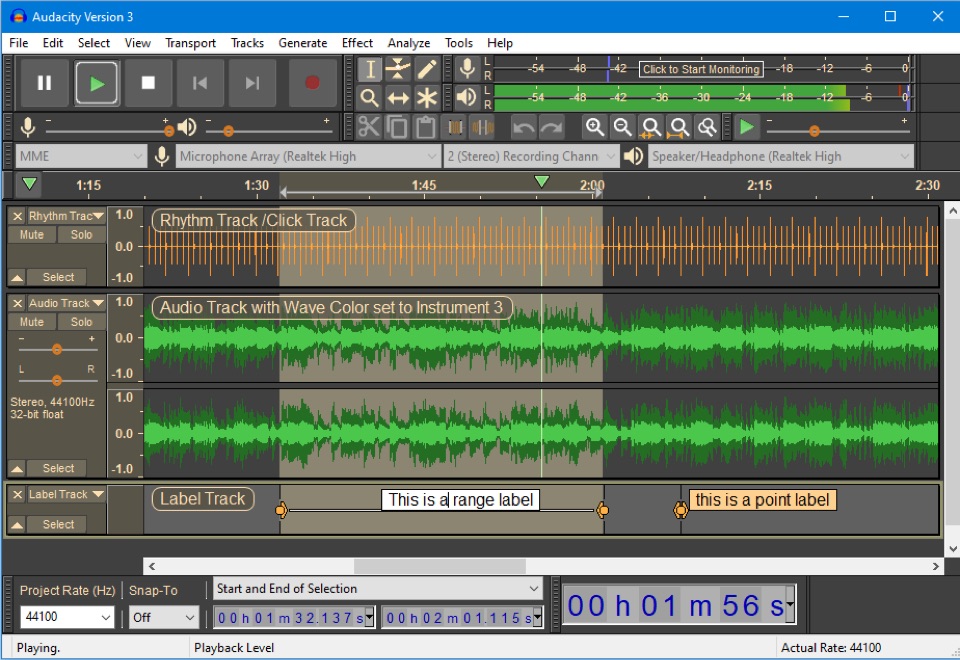
Audacity is free and includes a full editor. Its Noise Reduction effect learns from a short selection of noise alone, then applies that profile to the recording. It works best when the unwanted sound stays steady.
Audacity also has spectral tools for a selected time and frequency range. They let you target a small sound, but you make the selection and choose the action yourself. For a regular podcast edit with a fan in the background, Audacity may already be enough.
RX has tools for harder repairs
The RX 12 edition chart lists Dialogue Isolate, Spectral De-noise and Spectral Repair in Standard. Dialogue Isolate treats speech against noise and reverb. Spectral Repair lets you work on a selected sound in the time and frequency view.
iZotope’s repair walkthrough treats steady background noise and intermittent creaks as separate jobs. It uses Dialogue Isolate for broad noise and Spectral Repair for a specific creak. RX is the stronger fit when that local control matters. It is a paid suite, and its extra tools take time to learn.
Gleam Audio handles a repeatable speech pass
Gleam Audio runs Remove noise over a whole session of speech files, with a Strength slider instead of a captured profile. Enhance then levels each file to a loudness preset, and Convert exports the format you need. It doesn’t do RX’s spectral repair or Audacity’s multitrack editing. Details are in its 1.0 release notes.
Choose Audacity for a free editor and steady noise. Choose RX when the recording needs careful local repair. Choose Gleam Audio when several speech files need the same cleanup and you do not need to repair individual sounds.
The offline noise removal list includes REAPER for people already working in a full audio workstation.